The Evacuation: begin at the crash site
The Evacuation is a first-person browser shooter set in a hostile desert landscape. Your helicopter has crashed, and the mission sends you looking for an evacuation helicopter. Zombies and armed enemies make the journey dangerous. The player above loads the Y8 version directly, with its own title screen and keyboard controls. This guide explains the opening menus, the visible interface and how to recover from an unsuccessful attempt.
Check the version before using a walkthrough. The Evacuation shown here is the 2017 browser game, not the similarly named board game, the spaceship door puzzle or the Half-Life modification. Their rules, maps and solutions do not apply. Our checks reached the playable crash site, tested firing and restarting, and inspected the separate survival mode. They did not establish a complete route to the final helicopter.
Choose local saving, then start
After The Evacuation finishes loading, a save selection screen may appear. The Local Save panel has its own SELECT button. We used it to reach the main menu without signing in. The Online Save panel asks for a login instead; you do not need that option for the opening session described here.
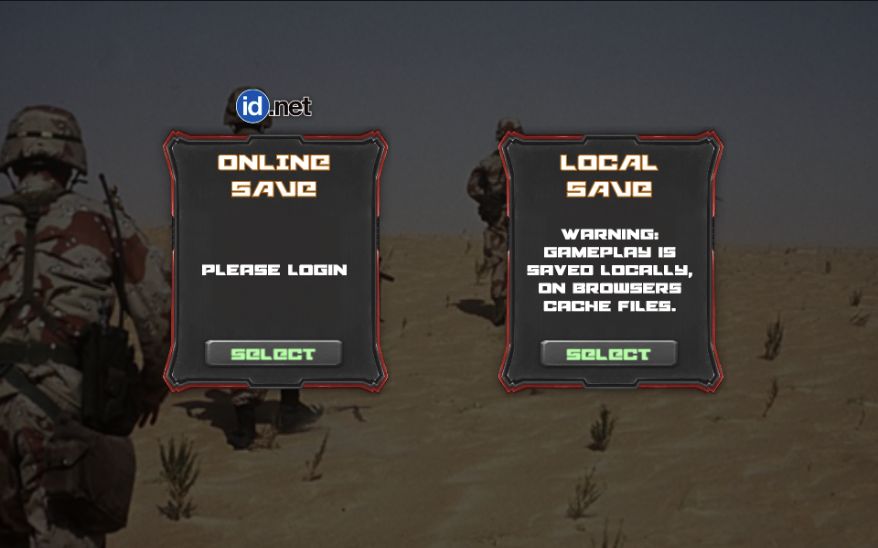
Local saving does not make The Evacuation an offline web page. The provider's files still need to load over the network. The menu warns that gameplay is saved locally in browser cache files. We did not test progress surviving a browser restart or data clearing, so keep a valuable session open and avoid refreshing to solve a minor control problem.
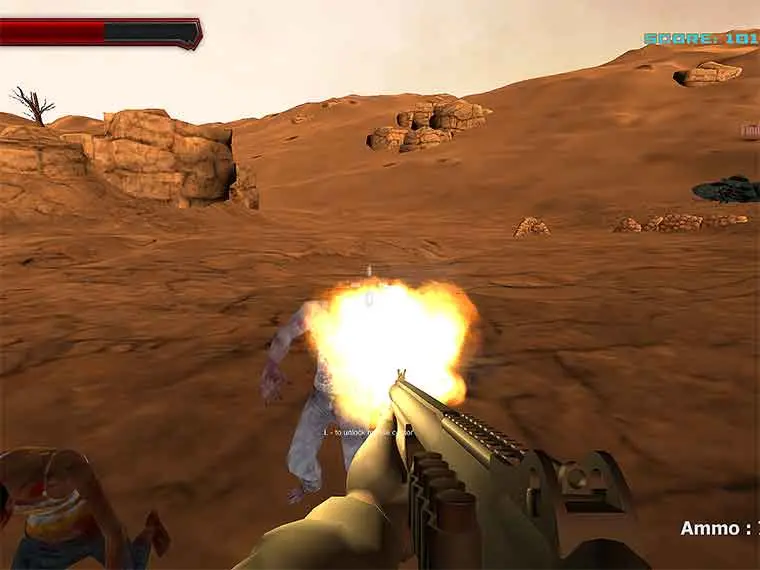
Choose START for the evacuation mission. Our starting scene showed a pistol, a crashed helicopter nearby, a health bar at the upper left and ammunition at the lower right. The objective text said to find the evacuation helicopter. Take a moment to locate these displays before leaving the crash site: looking at a score counter is not the same as checking whether your mission is complete.
The Evacuation controls
The main menu's CONTROLS panel is the best reference for the embedded build. It groups movement, weapon selection and session commands. Read it before starting if you are unfamiliar with first-person games. Once the scene is active, click inside the player so your keyboard input reaches the game rather than a page link or the browser's address field.
| Input | Action shown by the game |
|---|---|
| WASD, ZQSD or arrow keys | Move |
| Mouse / left button / right button | Look / attack / zoom |
| Shift | Run |
| Number keys | Select weapon |
| [ and ] | Next or previous weapon |
| E | Use item |
| M | Map |
| P | Pause |
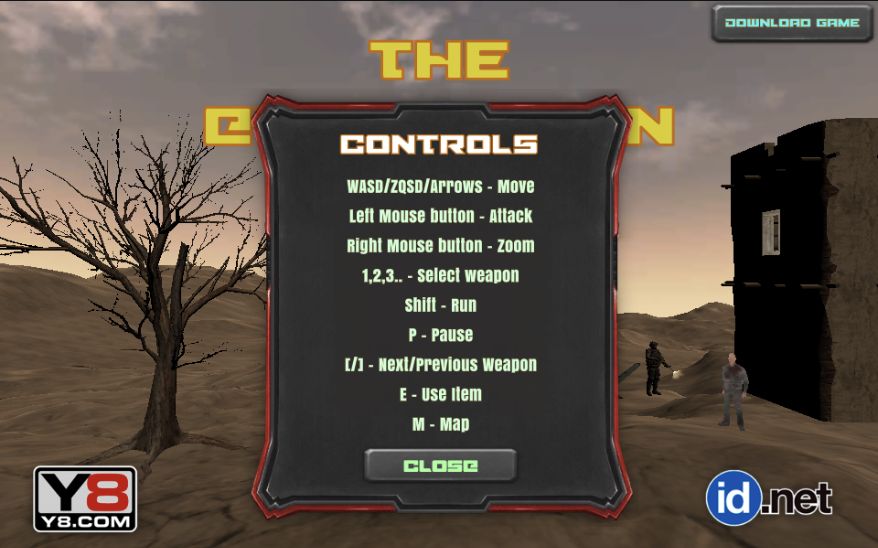
The Evacuation displays an L shortcut for locking the mouse cursor during play. That is a camera-control aid, not a pause command. Use P when you want time to read. The menu labels M as Map, but our short-keypress check did not produce a visible map, so this guide does not invent a map layout or a guaranteed route based on it.
Use landmarks and watch the ammunition display
In our opening The Evacuation session, ammunition read 10 / 999. One left click fired a shot and changed it to 9 / 999. That visible change is a useful focus check: if your input produces no response, verify that the player is focused before assuming the game is broken. Avoid spending ammunition merely to test every mouse movement.
Keep the crash site and larger rock formations in mind as reference points. Moving toward one recognizable landmark makes it easier to notice when you have turned back toward the same area. Check for nearby threats before studying distant terrain. A visible weapon on the ground is a reason to investigate, not proof that it has already been added to your inventory.

The Evacuation labels E as Use item and provides weapon-selection keys, but this guide has not verified every pickup or weapon. Approach a possible item, face it and look for feedback before changing equipment. Do not confuse an object's bright appearance with confirmation that you own it. When you are uncertain, compare the equipped weapon and interface before and after your action.
Mission mode and Survival Mode
The Evacuation offers START and SURVIVAL MODE as separate choices. START took us to the crash-site mission with the helicopter objective. SURVIVAL MODE instead opened a settlement with small buildings and nearby attackers; the helicopter objective was not displayed in that opening view. Select the mode that matches the challenge you want rather than assuming the two buttons continue the same run.
Standing still in survival mode cost health in our test and eventually led to GAME OVER. Use the pause menu before leaving the game to read a guide or inspect another tab. For a different wave-based challenge with a weapon shop, try Call of Zombies. If you prefer an island setting with inventory and diary interactions, The Forsaken Lab 3D provides that separate experience.
Pause and restart without submitting a score
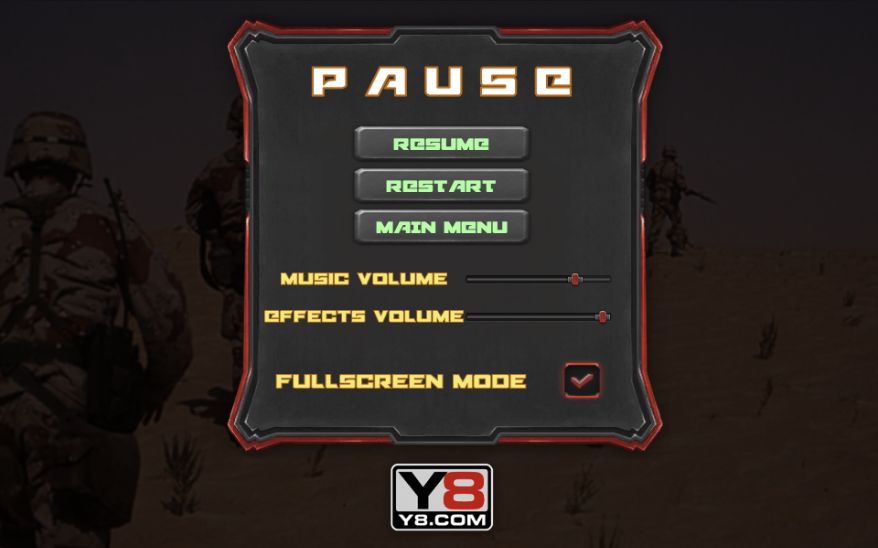
P opens The Evacuation pause menu. Resume continues the session, Restart begins another attempt, and Main Menu leaves the active scene. The panel also shows separate music and effects volume controls. We tested Restart after firing: the crash-site scene returned with ammunition restored to 10 / 999.
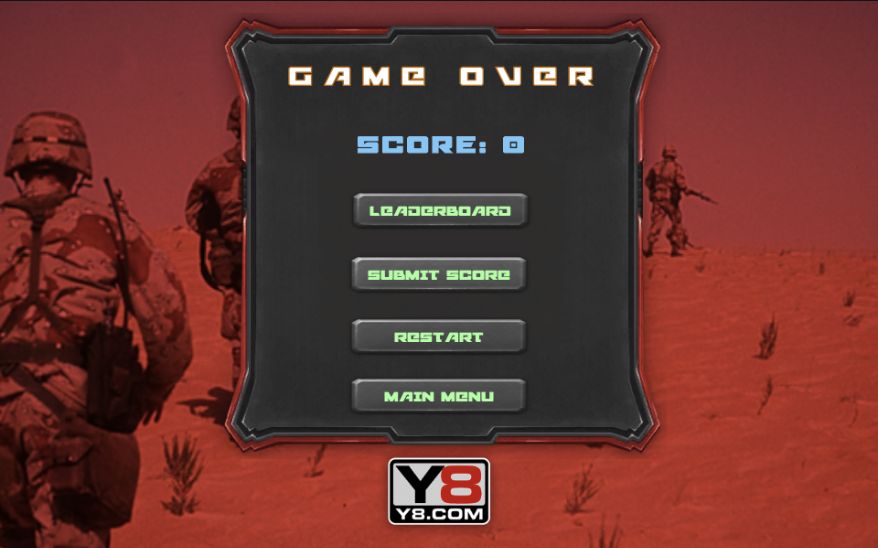
After a failed The Evacuation survival attempt, the result screen displayed the score alongside Leaderboard, Submit Score, Restart and Main Menu. Submitting a score is separate from starting over. We did not submit any score or test the online account service. You can inspect your result before choosing what to do next.
Before another attempt
Can I play The Evacuation on mobile?
The publisher lists desktop play, and the game expects keyboard and mouse input. This guide scales to a phone screen, but a smaller player does not add touch controls. Use a computer for the controls described above.
Is there a video showing this version?
GamingWithAdzzz's gameplay recording shows the matching crash site and interface. Start at 0:32 to compare the opening scene. The video title uses “flash game”; that title does not establish the technology used by today's embed.
What if The Evacuation stays on a loading screen?
Allow the provider's loader to finish, then try one page reload if it remains stuck before play begins. Loading this guide does not prove the external game has loaded. You can also choose another title from the game collection.
Sources and scope
Y8's The Evacuation listing supplies the game identity and premise. Menu descriptions and interface examples come from our embedded-game checks. This is an independent starting guide, not a claim that the final evacuation route or all achievements have been completed.