Call of Zombies: get ready for the next wave
Call of Zombies is the original Y8 browser survival shooter shown in the player above. Start with a pistol, watch your ammunition and health, and resist the approaching undead. This is a single-player game with its own controls and weapon shop. It is separate from Call of Duty Zombies, Call of Mini Zombies and similarly named browser demakes, so instructions for their maps or multiplayer lobbies do not apply here.
The first useful goal is a small one: start a session, learn where the status displays are, fire and reload, then inspect the ammunition shop. You can do that before trying to reach a high wave. Our guide follows the embedded build's menus and control overlay; it does not promise a winning route through every encounter.
Start without an online account
The Call of Zombies window loads on this page automatically. Allow the Unity loading screen to finish. In our test, a save-choice panel appeared before the main menu. Select Offline Save to proceed locally, then select Play on the title screen. We reached the playable scene without registering or signing in.
Offline Save describes the game's local saving option; it does not mean the web page works without an internet connection. The online choice advertises account features such as achievements and scores. Local progress surviving a browser restart was not tested, so avoid treating a refresh as a save command. Keep the tab open while you are in a run you want to continue.
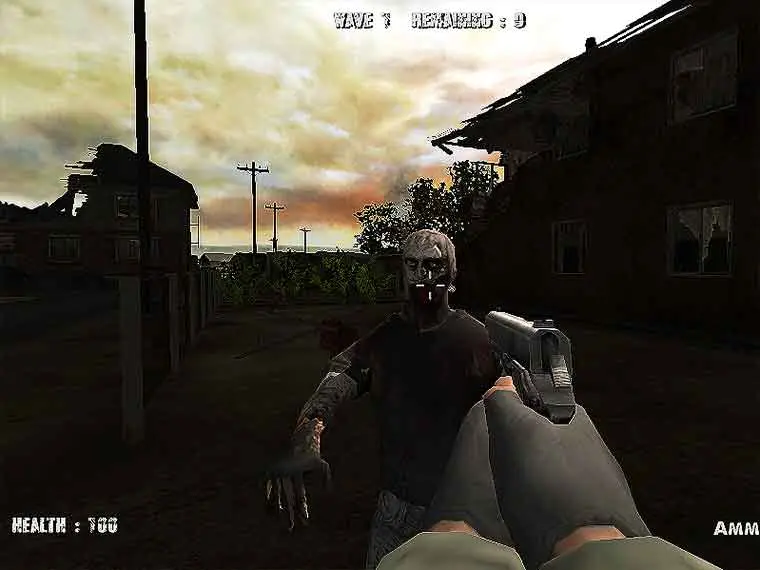
At the beginning of Call of Zombies, identify the crosshair near the center, health at the lower left, ammunition at the lower right, and wave information above. Our opening scene displayed health 100 and ammunition 10 / 50. A warmup message preceded the incoming wave. Use that preparation time to orient yourself instead of firing randomly.
Use the current game's control overlay
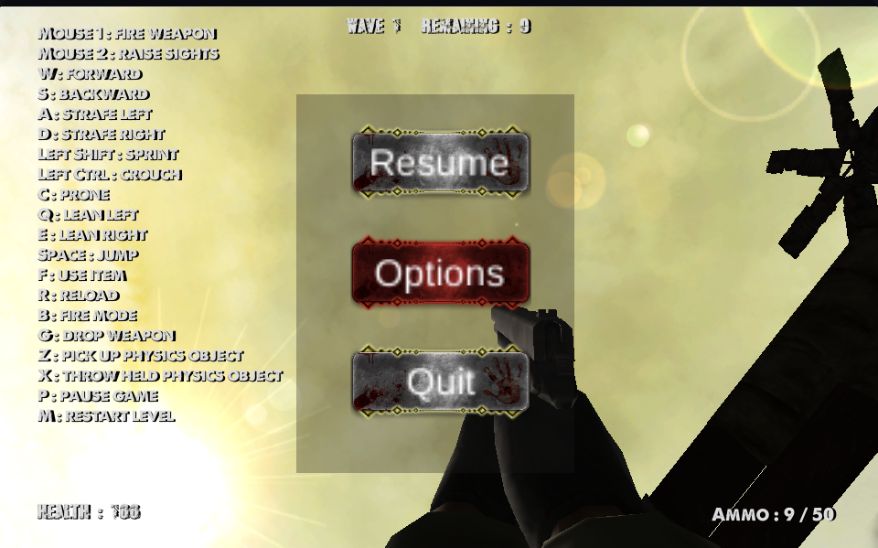
Press O in Call of Zombies to show the control reference. The observed overlay is more detailed than the short directory listing. In particular, it labels Left Ctrl as crouch and C as prone. If another guide reverses those actions, follow the overlay in the build you are playing.
| Input | Displayed action |
|---|---|
| W, A, S, D | Forward, strafe left, backward, strafe right |
| Mouse / left click / right click | Look around / fire / raise sights |
| Left Shift / Space | Sprint / jump |
| Left Ctrl / C / Q / E | Crouch / prone / lean left / lean right |
| R / F / B / G | Reload / use item / fire mode / drop weapon |
| Z / X | Pick up / throw a held physics object |
| P / M | Pause game / restart level |
| T | Open the weapon and ammunition shop |
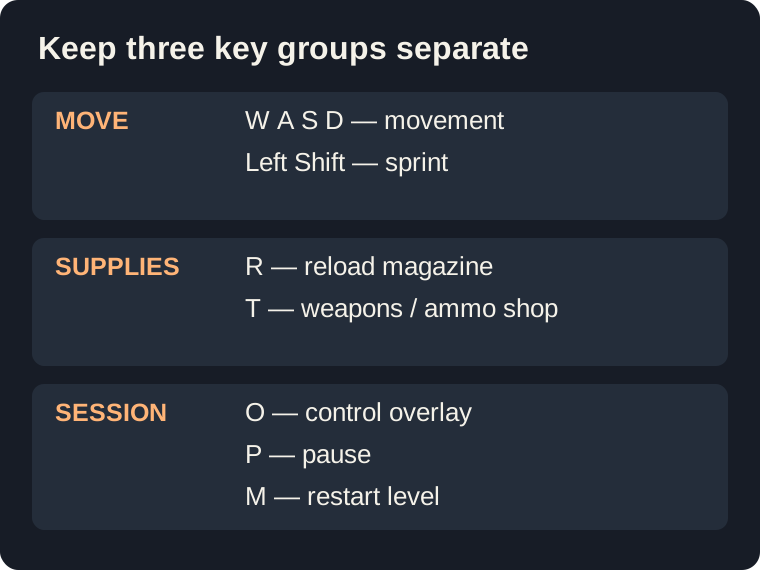
Click inside the game to give it keyboard focus. A key pressed while a page link or browser field is focused may affect that element instead. Call of Zombies also lists L for cursor locking on its publisher page. When a menu is visible, use its controls deliberately: a click after a menu closes can fire the equipped weapon.
Buy ammunition in Call of Zombies
Press T to inspect the store. Its upper row contains weapons and its lower row contains ammunition, with prices beneath the tiles. Your balance appears at the top. Select the ammunition matching your weapon, then choose BUY. Merely highlighting an item is not the same as completing the purchase.
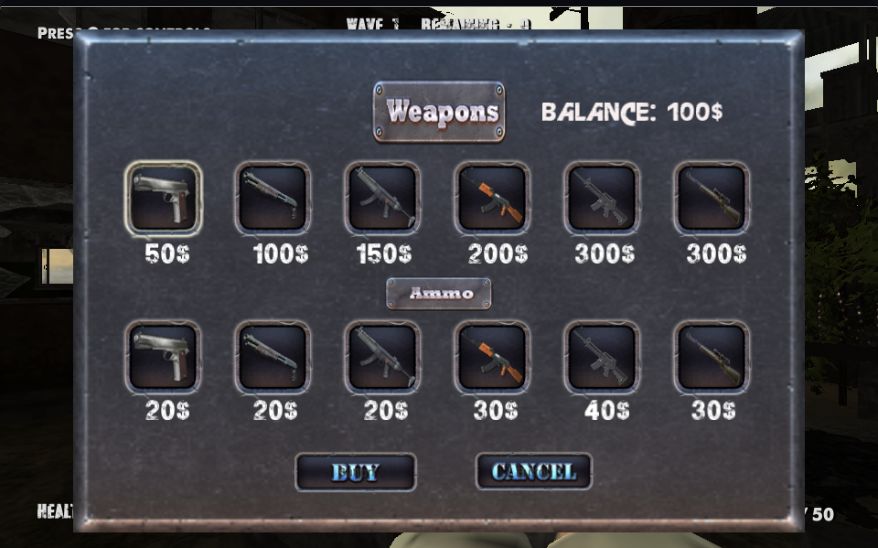
In our Call of Zombies test, the balance started at 100. Selecting the lower pistol-ammunition tile and buying it reduced that balance to 80. After closing the shop with CANCEL, the reserve read 70 instead of 50. A shot had also been fired, leaving the first number at 9. This gives you two checks that the purchase worked: the balance changes and the reserve ammunition increases.
These are in-game resources. Buying reserve ammunition does not immediately fill a partly used magazine; the reload action is separate. Read both numbers before deciding you need another purchase. Repeatedly pressing BUY can spend more of your balance than intended. Close the shop once you have what you need and return your attention to approaching enemies.
Keep room to move
Call of Zombies puts pressure on your position as well as your aim. Find a clear route away from nearby attackers and watch for walls or obstacles behind you. Repositioning before you are surrounded gives you time to aim and deal with a low magazine. Standing still while reading the interface can cost health; our test character took damage while we inspected the scene.
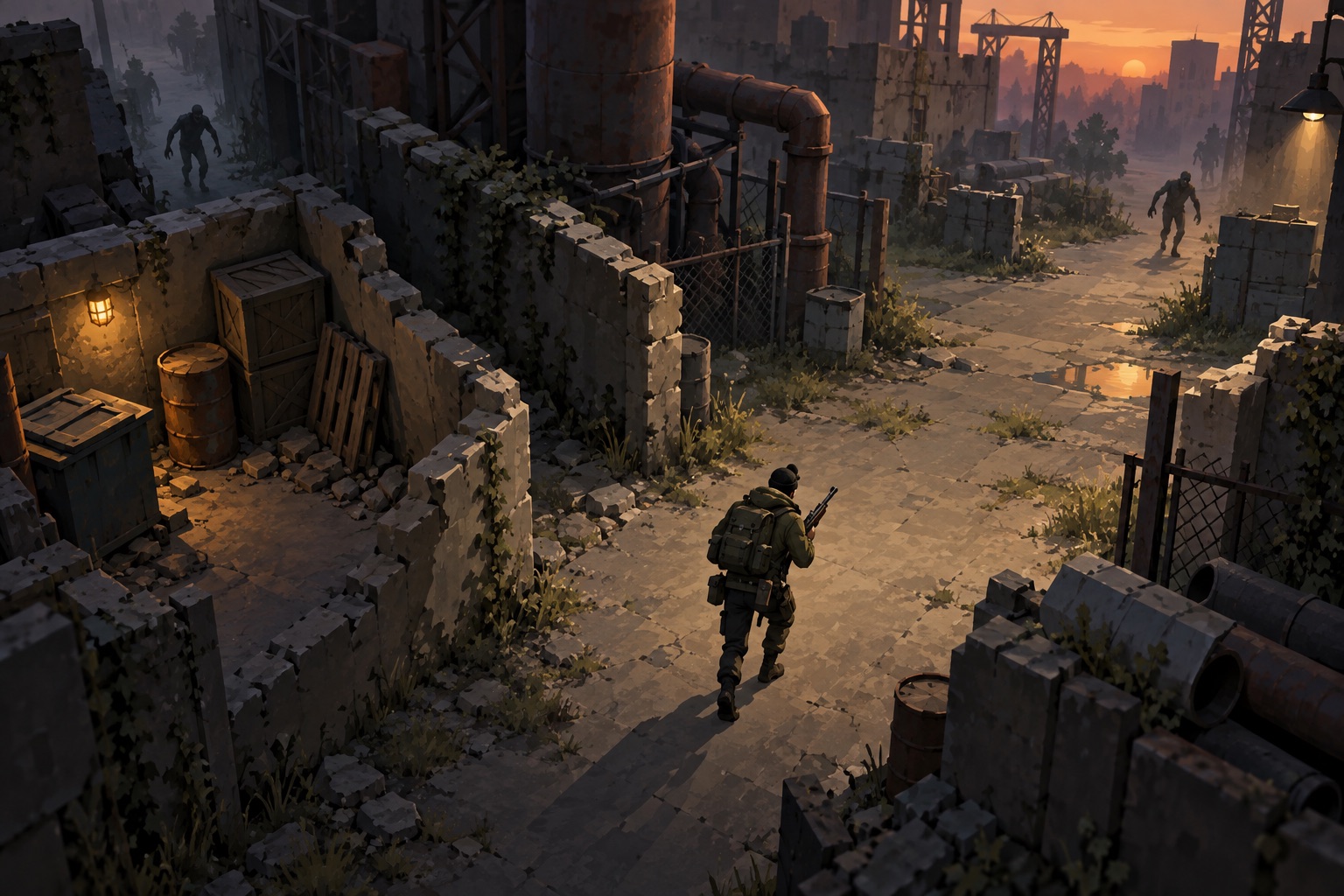
For an early Call of Zombies attempt, change one habit at a time. First learn to recognize the ammunition display without losing sight of the scene. Next practice finding open space before reloading. Then compare how long you last. This makes a failed attempt useful without assuming that a particular purchase or position guarantees survival.
Pause, resume and restart
P opens the Call of Zombies pause menu, which showed Resume, Options and Quit in our session. Use Resume to continue the current attempt. M is different: the control overlay identifies it as restart level. We tested it and returned to the opening scene with the initial ammunition and warmup countdown.
Pause before reading a long section of this guide. Do not assume that switching to another tab freezes the game. If you want to try a different challenge, Ghost Town WebGL offers another first-person monster encounter, while The Forsaken Lab 3D adds diary and equipment management. Leaving this page ends your current embedded session.
Read your result before trying again
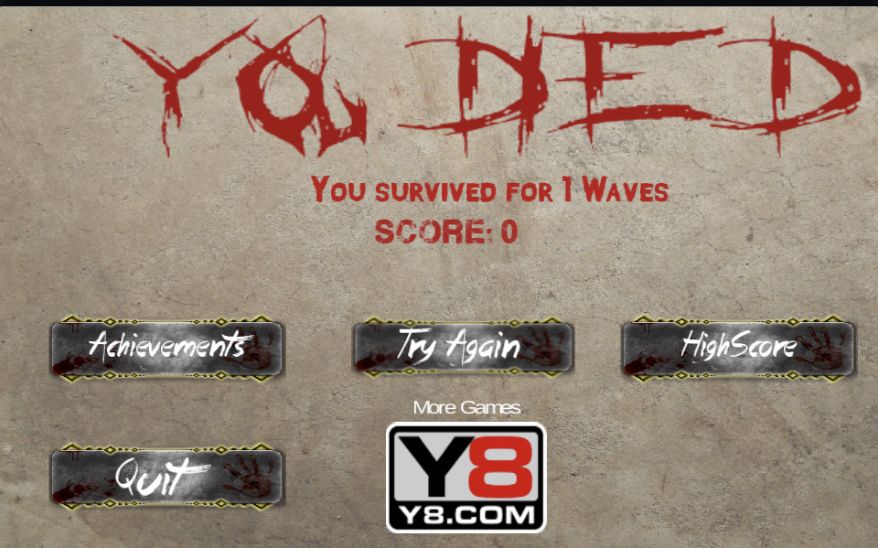
When health runs out, Call of Zombies shows a survival-wave count and score. Our result screen displayed one wave and a score of zero; reaching that screen is not evidence of clearing the wave. Choose Try Again to begin another attempt. We verified that this returned to the starting scene with health 100, ammunition 10 / 50 and the warmup countdown. High Score is a separate menu and is not needed to restart.
Device and version questions
Can I play Call of Zombies on a phone?
The publisher lists desktop support. This guide fits a phone screen, but the game relies on keyboard and mouse controls. A smaller iframe does not supply a touchscreen movement pad.
Is there multiplayer or an unblocked download?
This is the original single-player browser embed. It does not provide a multiplayer lobby, an APK download or a modified version that bypasses network restrictions. Browser play still needs the provider's files to load.
What if the player stays blank?
Give the loader time, then try one reload before starting a valuable run. If it still fails, choose another game from the 20-game collection. A browser rendering this guide successfully does not prove the external game finished loading.
Game and guide sources
Game identity and device support come from Y8's Call of Zombies listing. Menu, store and control descriptions were checked in the embedded game. Blockdeck is an independent guide and does not operate the game's account service.